Additional Pre-processing Tools
Xenon-LFP-Analysis GUI and the code files discussed in the Tutorial sections work with uncompressed-RAW recording, however at times the recording for large duration measurements may be in the BrainWave4 or BrainWave5 proprietary Wavelet Compressed format. This requires the BrainWave4 or BrainWave5 Decompression class and methods. In this section we provide additional support code files to select and export a set of channels from the RAW or Wavelet compressed format to the uncompressed RAW hdf5 file that can be analyzed in the Xenon LFP Analysis GUI. The code files generally work for measurements collected using the BrainWave4 and BrainWave5 software version, both on the RAW and WaveletCompressed files, however will require Python version 3.7 and the BrainWave5 software installed to uncompress the proprietary Wavelet compression data.
It is a two step process to select, and then extract the channels from the large compressed measurement file. In the first step, a light weight interactive application: Select, Downsample and Export: Channel Selection Toolbox is used to upload the slice image overlay, and select channels that need to be exported, this generates a xx_exportCh hdf5 file. In the second step, the measurement file along with the generated xx_exportCh hdf5 files are placed in a folder and the provided Python script is run to extract and downsample the selected channels. When you have multiple measurements files in the same folder it processess them one at a time.
A. Select channels to export
Download or clone the code-files from GitHub-Repository, run the below command using the full path of the Python code file: ExportToHDF5-ChannelSelection.py.
>python C:\Downloads\xenon-lfp-analysis\code-files\3Brain-processing\ExportToHDF5-ChannelSelection.py
Copy and paste http://127.0.0.1:9090/ in the browser.
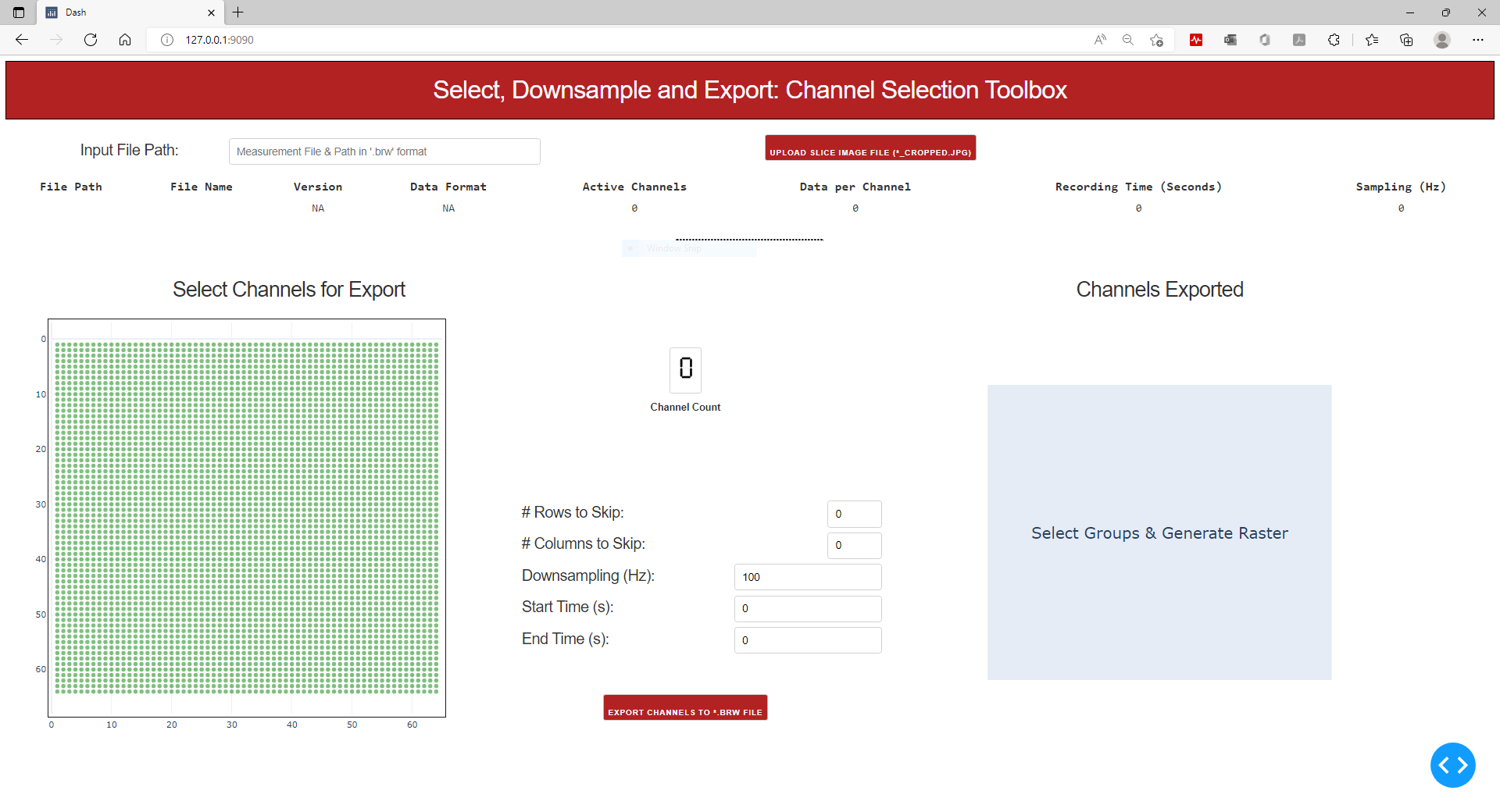
Once the Dash application is running it should look as below:
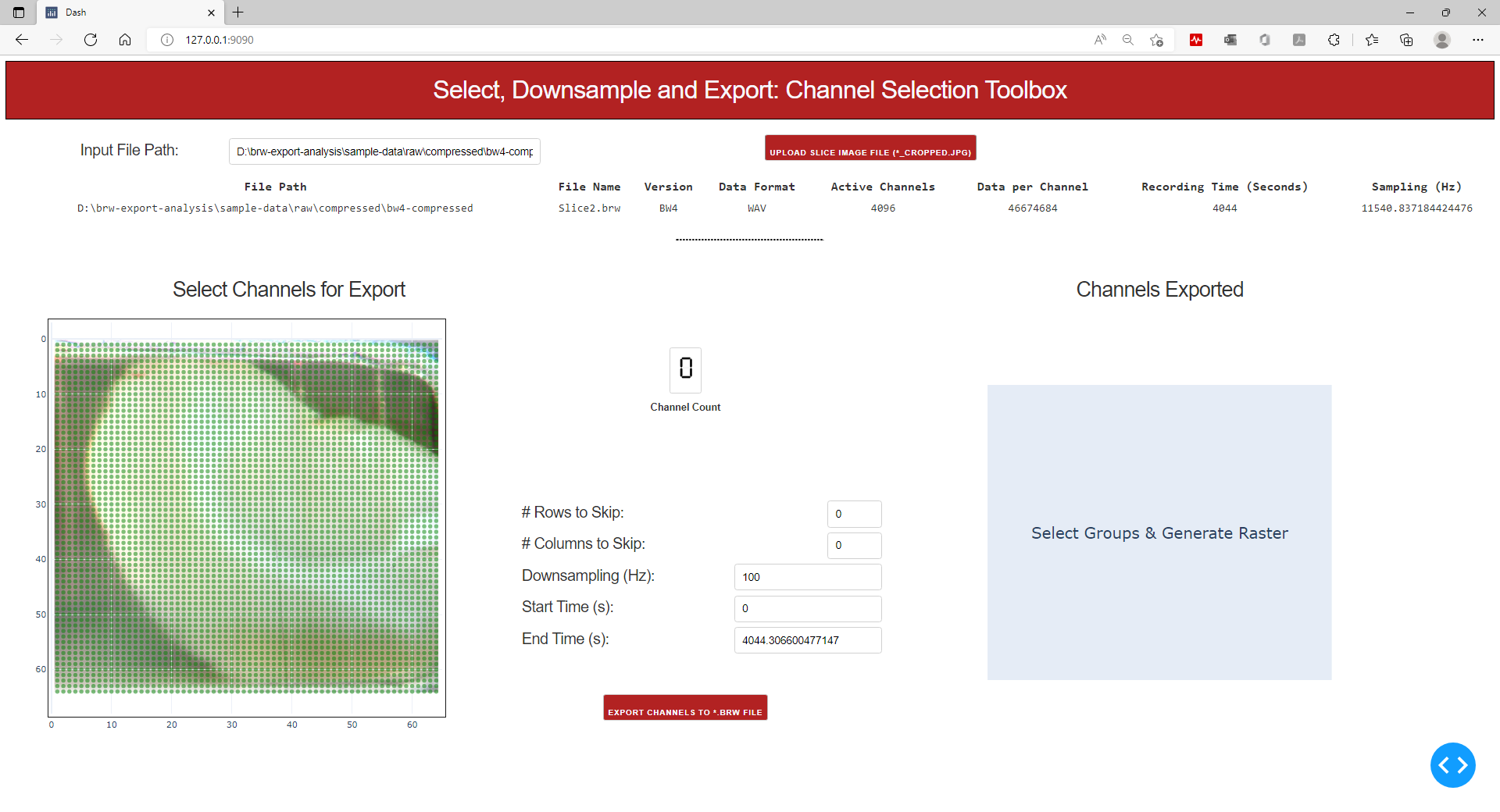
2. You will need two inputs, first the full folder path along with the file name for the measurement file (RAW or WaveletCompressed), and second the cropped slice image file to over lay on 4096 channel grid, uploaded using the upload image icon (if you don’t have a slice image you still need to upload a dummy image to get to the next step):
You can now use the lasso tool or box tool to select channels to export, you can hold down the shift key to select multiple regions or un-check selected channels.
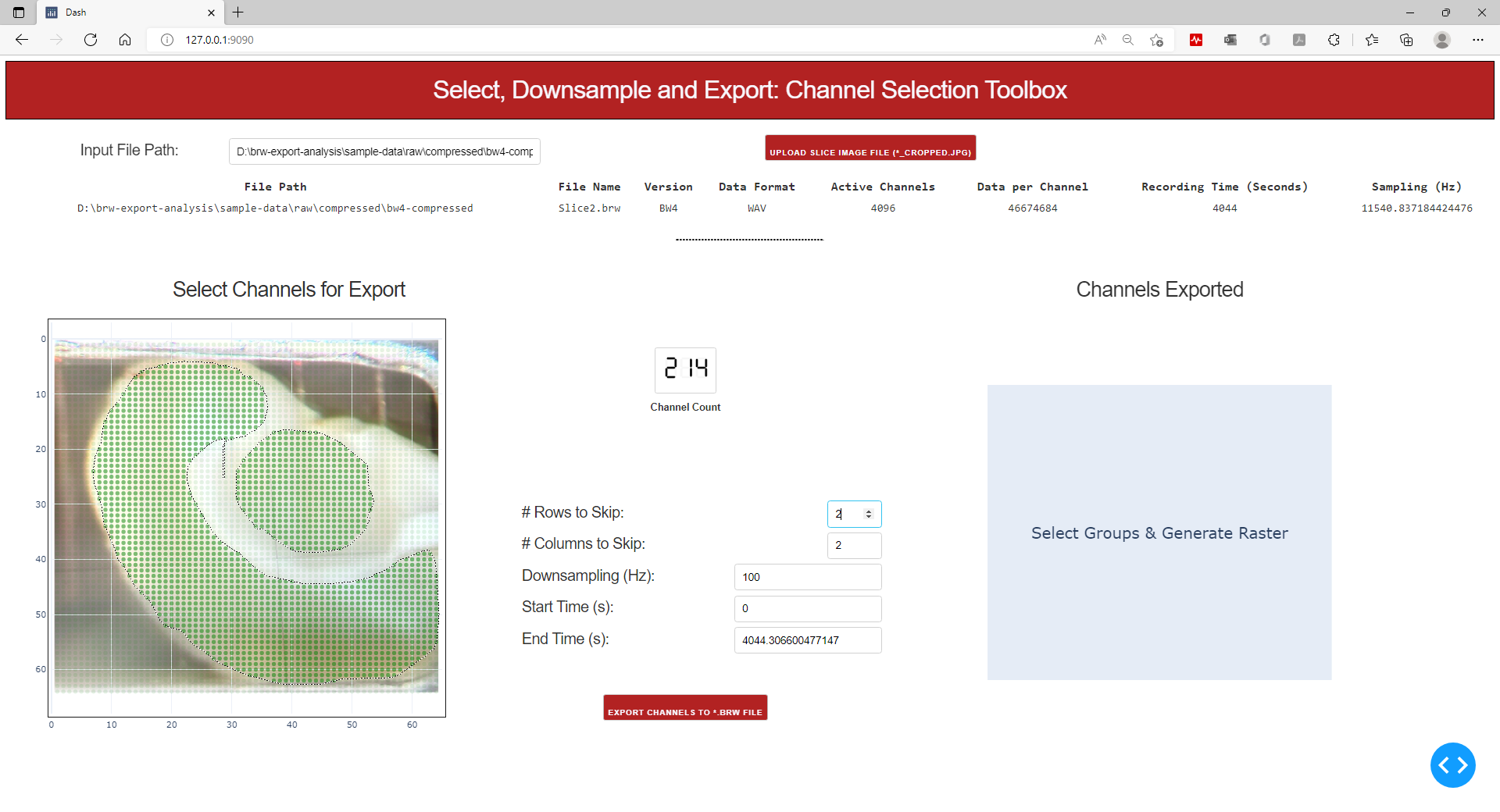
Once you have selected the channels, you can set the downsampling frequency, or reduce the number of channels in the region using the options provided and click Export Channels to *.brw File.
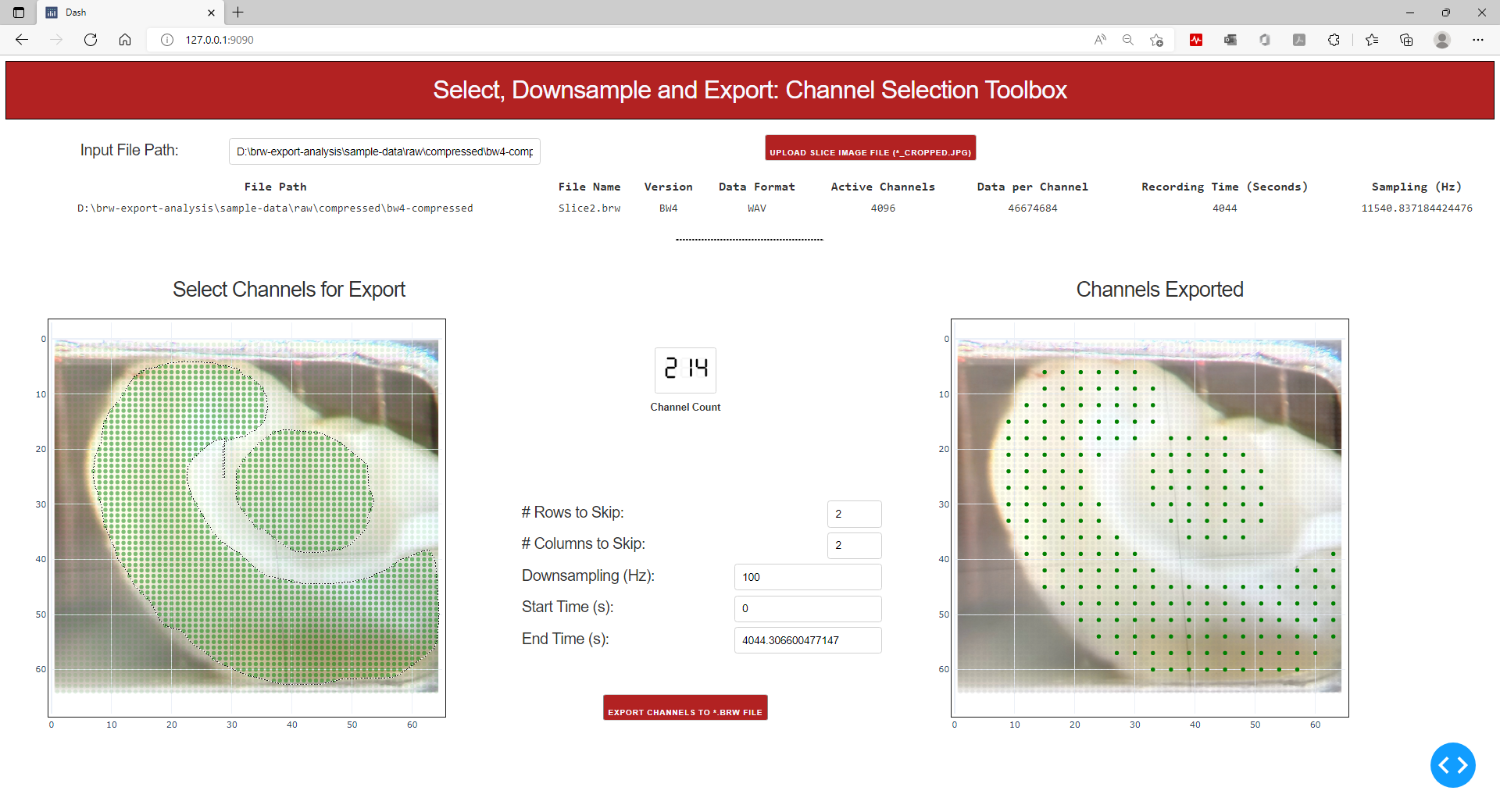
5. This should generate a filename_exportCH hdf5 file in the same folder as the measurement file. You can update the selection or edit settings, the file is overwritten with the latest settings, each time you click Export Channels to *.brw File.
B. Extract selected channels from BrainWave file recording
As mentioned earlier, to run this step you will first have to follow through on steps in the previous section to generate the xx_exportCh file, have a local Python 3.7 environment with all the dependencies (pip install xenon-lfp-analysis), BrainWave5 software installed, and the path for the installation, containing the .dll files.
1. Open a terminal window, run the the Python code file ExportToHDF5-ExtractDownsample.py.
>python C:\Downloads\xenon-lfp-analysis\code-files\3Brain-processing\ExportToHDF5-ExtractDownsample.py
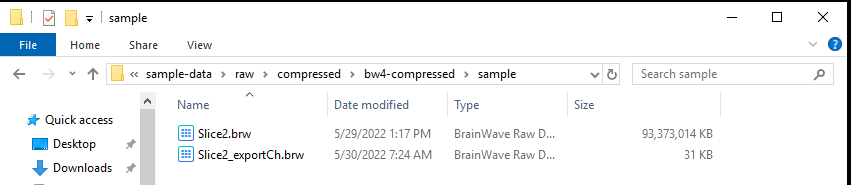
2. A prompt will come in the Terminal Window for the folder path, make sure the measurement file and the xx_exportCh files are in the same folder. Note that the file names need to be matched as shown in the example below, and if you have multiple pairs of files in the same folder, it will process them one at a time.